To disable the password complexity policy for Windows Server Core installation? If your Windows system comes with a GUI interface, you change the password policy from within the Group Policy Editor, but the steps are still a bit complicated for a Windows domain controller.
In this tutorial we’ll show you a quick yet simple way to change local / domain password policy from the Command Prompt. This method works with all versions of Windows, including Windows 10, 8, 7, Vista and Windows Server 2012 (R2) / 2008 (R2) / 2003.
How to Change Local/Domain Password Policy from Command Prompt?
If your computer is a domain controller, follow the steps below and you can change the default domain password policy. To change the local password policy on a domain controller, you must boot your server in
Directory Services Restore Mode (DSRM) and then perform the steps below:
- Open an elevated Command Prompt. If you’ve forgotten the local or domain administrator password and couldn’t log on, try the PCUnlocker bootdisk for bypassing the password.
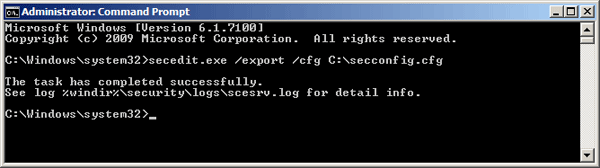
- Type the following command and hit Enter:
secedit.exe /export /cfg C:\secconfig.cfg
This will dump the local policy or domain policy for the system, including account policies, audit policies, and so on.
- Open the C:\secconfig.cfg file with your text editor. For Windows Server Core, you can type notepad.exe in the Command Prompt. When Notepad launches, click the File -> Open menu to open C:\secconfig.cfg.
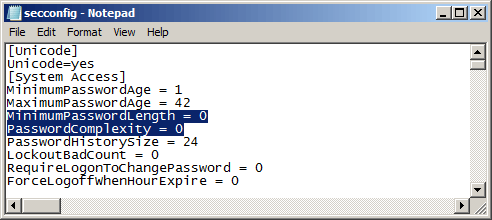
- Now you can view and edit all of the relevant policies as shown below. In this example, we’ll disable the password complexity policy. So we replace
PasswordComplexity = 1 to PasswordComplexity = 0, and change the value of MinimumPasswordLength to 0.
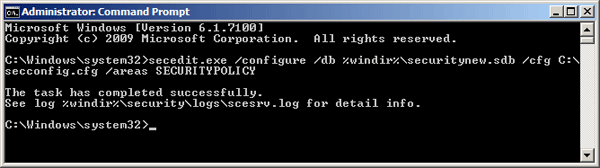
- When done, save your changes. To load the edited file as your new policy configuration, use the following command:
secedit.exe /configure /db %windir%\securitynew.sdb /cfg C:\secconfig.cfg /areas SECURITYPOLICY
- The new password policy will apply to all password changes and new password. After disabling the password complexity policy, you should be able to change Windows account password to whatever you like.